My Computer
This view mode shows additional system elements in a standard tree-view form, much like the disks in Windows Explorer. Information for the currently selected object, such as disk status, serial number, partitioning and device SMART info (if available) is displayed in the Properties window on the right side. Read more in: Property View.
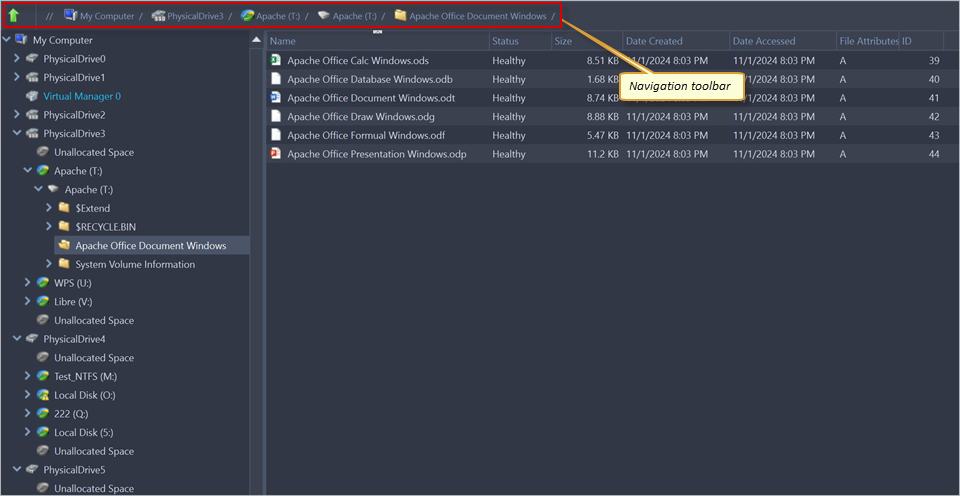
My Computer view is intended for examining disks' surfaces for verification purposes, for proper disk selection for erasure, and for validation of deleted files after wiping. The view is able to preview volumes and display files and folders located on all existing file systems used in Windows, Linux, Unix and Mac OS.
The My Computer view shows existing files as well as files that have been deleted but NOT sanitized. These files appear in gray and indicate deleted files that have a high probability of being recovered with special file recovery tools.
Use the Address bar for easy navigation through disks.
This view mode is also adjustable through the Customize drop down menu, similar to Device view mode:
- Show My Computer
- Displays all devices that are detected by the system Device Manager
- Show System Disk
- Displays the disk containing the Operating System. This is off by default to prevent accidental erasure of the system
- Show Unallocated Partitions
- Displays disk's unallocated space - partitions where no volumes created yet
- Show Devices
- Switches between display of Devices (physical disks containing volumes) and Volumes only display
- Show Removable Disks
- Displays removable media storage devices (USB Flash Disk, External USB etc.)
- Show Not Ready Devices
- Displays devices that may not yet been initialized and accessed by the Operating System
- Show Local Network
- Loading Local Network shared resources
- Navigator Pane
- Shows/hides Navigator Pane on the right side of the View
Active@ KillDisk can automatically detect plugged-in removable devices and shows them in the My Computer view. However, if a plugged-in device does not appear, click the Refresh button in the toolbar to update the My Computer view. To completely rescan and refresh all connected local data storages, press and hold the Ctrl button on the keyboard and click the Refresh button in the toolbar.
Browse Disk View
To browse the contents of a specific disk simply select the disk, partition or volume in Disk Explorer and click the Open in File Browser button from the toolbar, select the Open in File Browser command from the Action menu or select the related command from the context menu.
Another way is to use a keyboard shortcut, which is Ctrl+B. This will open the File Browser window.
The File Browser tab displays files and folders on the selected disk. Browsing through the folders tree is performed the same way as in the default OS Explorer. The File Browser tabbed view may also be adjusted using the Customize menu.
To view the selected object at a low level, click View in Hex Viewer button from the command toolbar, select the View in Hex Viewer command from the Action menu or select the related command from the context menu.
To view a volume in the system's native File Explorer, select the Open in File Explorer command from the Action menu or select the related command from the context menu.
Property display for selected objects is available in the Browse Disk view. Select from the main menu.

Files or folders in gray indicate deleted files that have not been sanitized. These files are recoverable.
Running KillDisk's Wipe operation ensures these files are unrecoverable and makes these gray files disappear from the File Browser.
Deleted files that are found appear in their original directory (before they were deleted). The ! Lost & Found ! folder is a virtual directory created for deleted files which are found without directory information.