Resume Stopped or Interrupted Erase
Disk erasure can be a time-consuming task. Erasing larger disks (10TB+) with sanitizing standards that include multiple overwrite passes can take several hours. If an interruption occurs during erasure (such as a user-initiated stop, disk failure, computer reboot, etc.), the user has the following options:
- Erase the disk completely from the beginning;
- Resume erasure from the point where it stopped (time-saving option);
When the application starts, all detected disks are analyzed for previously interrupted erasures. If such erasures are detected on one or more disks, the Resume Erase button becomes active for those disks. Disks with stopped or interrupted erasures are marked with a red Interrupted Erase label.
If disks with interrupted erase being detected after program start, pop up dialog appears automatically suggesting you to Resume Erase. You can run Resume Erase from here, or select the particular disks later on.
Resume Erase complete process is described below:
-
Configure task options
After Resume Erase Disk dialog appears, all disks where Resume Erase option is available will be displayed. You can select more disks for resume erase (if available) or deselect some selected disks.
Figure 1: Resume Erase Options 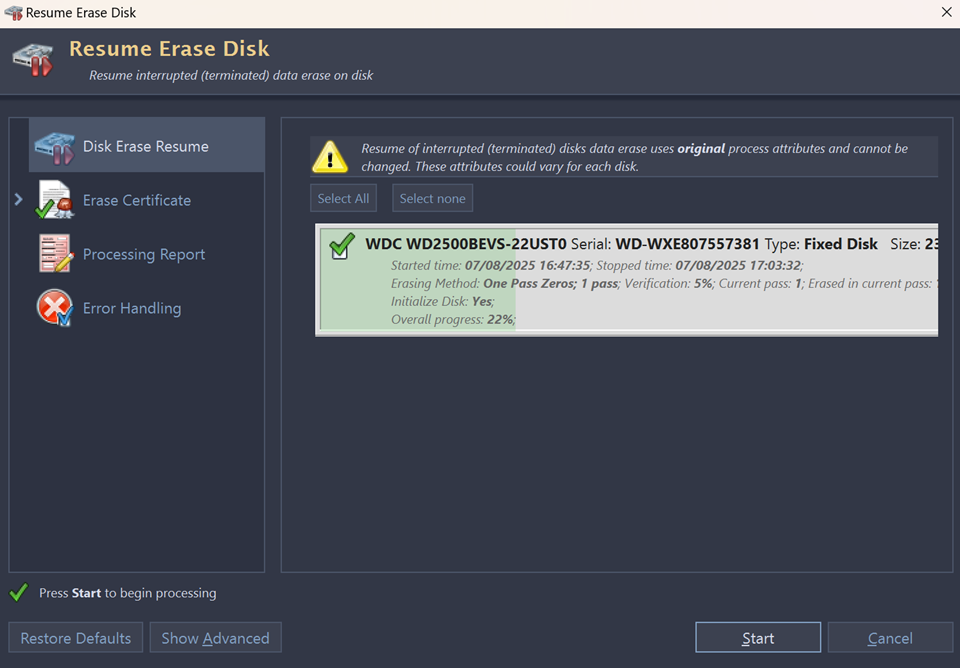
If necessary, configure task options on each page of the Erase Disks dialog, which includes the following:
By default, Processing Summary dialog will appear with detailed information of erasure results for each disk, including complete task attributes, log etc.