Disk Bay Layout Advanced Features
Once a Disk Bay Layout is created there are a number of actions that can be performed to format or manipulate the layout and appearance of the disks in the Active@ KillDisk.
Disk Lock
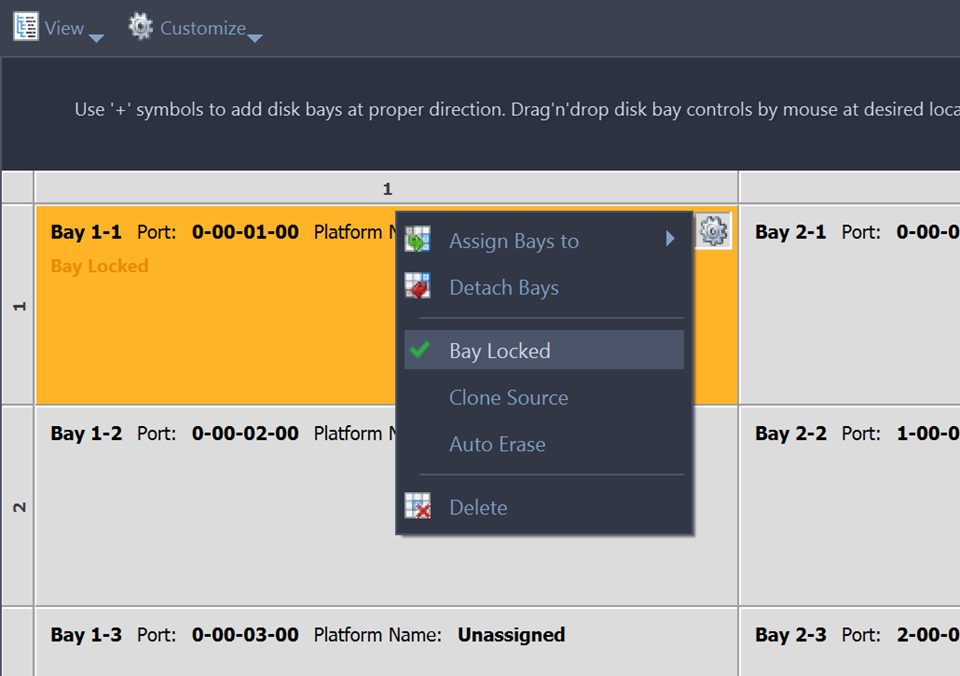
In order to prevent accidental erasing of important disks Active@ KillDisk supports locking of disks. Once a disk is locked, no write operations are allowed to be performed on the drive. To do this simply find the disk that needs to be locked and execute Bay Locked menu command from the Change disk bay attributes drop down menu:
Auto Erase
Auto Erase feature is designed to speed up disk wiping process in scenario when many disks must be erased with the same erase attributes with minimum user interaction. When disk is inserted in a Bay marked as Auto Erase then disk erase procedure will start without any introduction or confirmation dialogs. However, you will see 30 seconds countdown started on Disk Bay and may cancel this action by selecting Disk Bay widget and clicking Stop button in View's toolbar or in context menu.
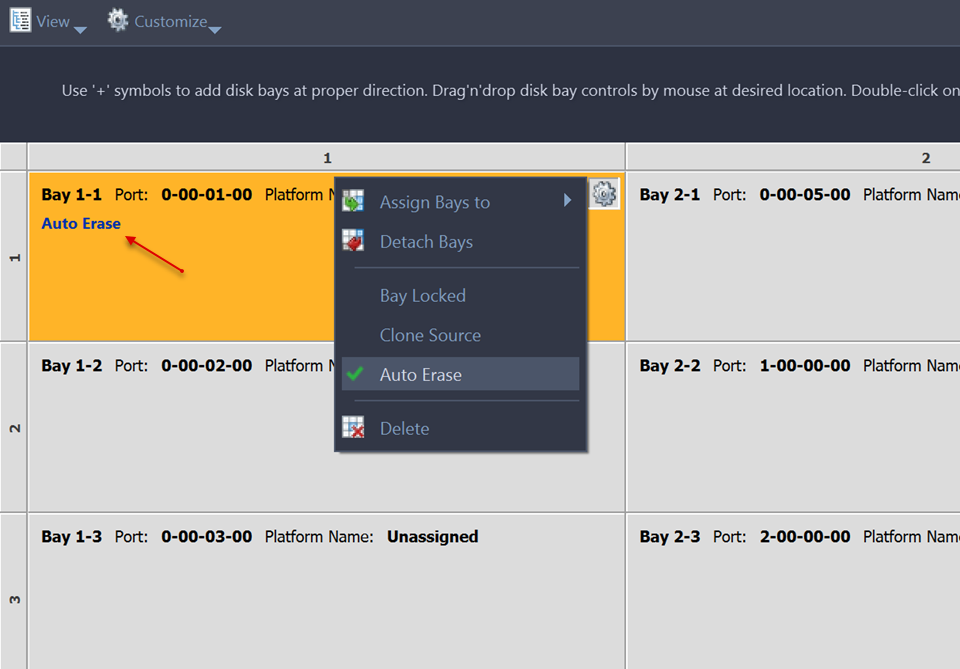
Use this feature with extreme caution - make sure the inserted disk is intended to be erased and appeared in a right Bay. You will have 30 seconds to abort disk erasure.