Navigation
The Active@ KillDisk interface is organized into several key areas designed for efficient workflow and easy navigation:
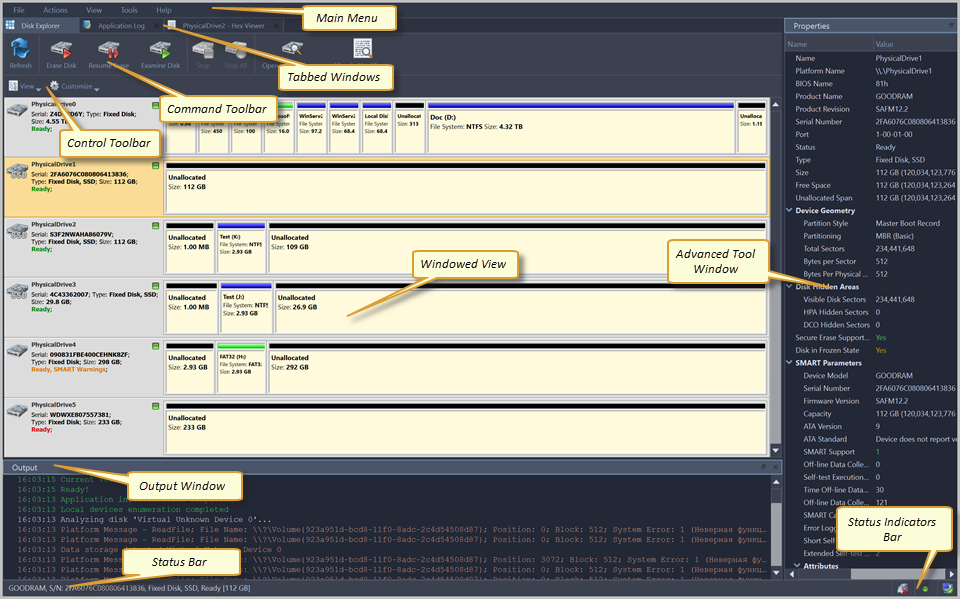
- Toolbar and Menu Bar
- Located at the top of the window, the toolbar provides quick access to commonly used commands such as starting processes, viewing reports, and accessing preferences. The menu bar offers comprehensive access to all application features organized by category.
- Tabbed Windows
- Contains the window that is currently active. By default, the central area displays all detected storage devices, including internal drives, external USB drives, and network-attached storage. Each device entry shows essential information such as capacity, model name, serial number, and current status. You can select one or multiple devices to perform operations on them simultaneously.
- Properties Panel
- When a device is selected, the properties panel displays detailed information about the drive, including partition structure, file system type, SMART attributes, and hardware specifications. This information helps you verify that you have selected the correct device before performing any operations.
- Status Bar
- Located at the bottom of the window, the status bar shows the current application state, number of selected devices, network and status during active operations.
The full functionality and features of these components are discussed in corresponding sections below.