Introduction
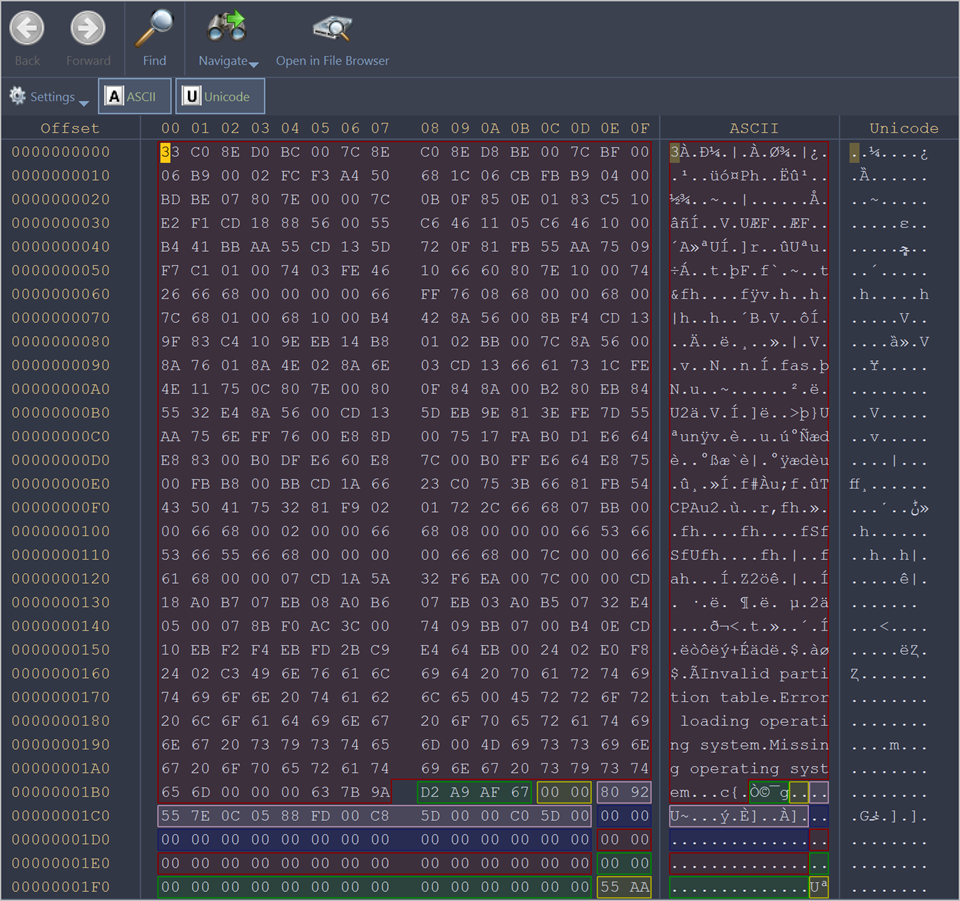
The Disk Viewer gives the direct access to raw data stored on physical storage devices at the most fundamental level – the binary or hexadecimal representation of bytes. Unlike standard file operations that work through the operating system's file system layer, low-level editing provides direct access to the underlying data structures, enabling work with individual bytes, sectors, or clusters on a disk, partition, or within files. In Disk Viewer all these information presented in hexadecimal, ASCII or Unicode formats with easy direct and logical navigation allowing user to evaluate the actual content and integrity of:
- Physical Disk
- Logical Drive or Partition
- File
Use Disk Explorer to open any of these data storage objects from menu (shortcut is Ctrl-H) or other UI widgets that gives an access to system data structure.
Data Selection
In order to select data in the Hexadecimal, ASCI or Unicode area, click and hold down the left mouse button and start dragging to select an area. The selected area background will be highlighted. Release the mouse to finish selecting. You can select an area bigger than will fit into the screen by dragging the mouse beyond the top or bottom edge of the hex editor window.
The alternative way to make a selection is to define a beginning and an end of the block. This method might be more convenient when a large area has to be selected in order to simply select data in a particular range. Move the cursor to the position where you want the selection to start and do one of the following:
- Select the menu command from the Edit menu in the toolbar;
- Select the menu command from the Advanced menu in the edit pane toolbar;
- Right click and select Beginning of block from a context menu;
- Press Ctrl+1.
Move the cursor to the end of the desired selection and set the end of a selection in a similar way. If you need to select all the data, you can use the Select All command instead.
Use left mouse button double-click inside the sector for select an entire sector.
Use Shift+Beginning of block for select from beginning of block to current cursor position.
Use Shift+End of block for select from current cursor position to end of block.
To select you can also use Up, Down, Left, Right, Home, End, Pg Up, Pg Dn keyboard buttons in combination with the Control and Shift buttons.
Working with the clipboard
Select an area of data as described above and either select:
- the command ;
- the Copy button from the edit pane toolbar;
- the command Copy from a context menu;
- press Ctrl+C.
The selected area will be copied into the clipboard in binary format. If you later want to insert it into a text editor, use the Copy Formatted command or press Ctrl+Shift+C instead. It will copy data as a formatted text.
When you copy selected text from the edit pane to the clipboard, you may paste it in text editor in one of three formats:
- Binary – hexadecimal representation of selected data
- Text – text representation of selected data
- Formatted text – formatted hexadecimal and text representation of selected data (as it appears in the editor)
Please note that you can copy a maximum of 1MB of data into the clipboard.