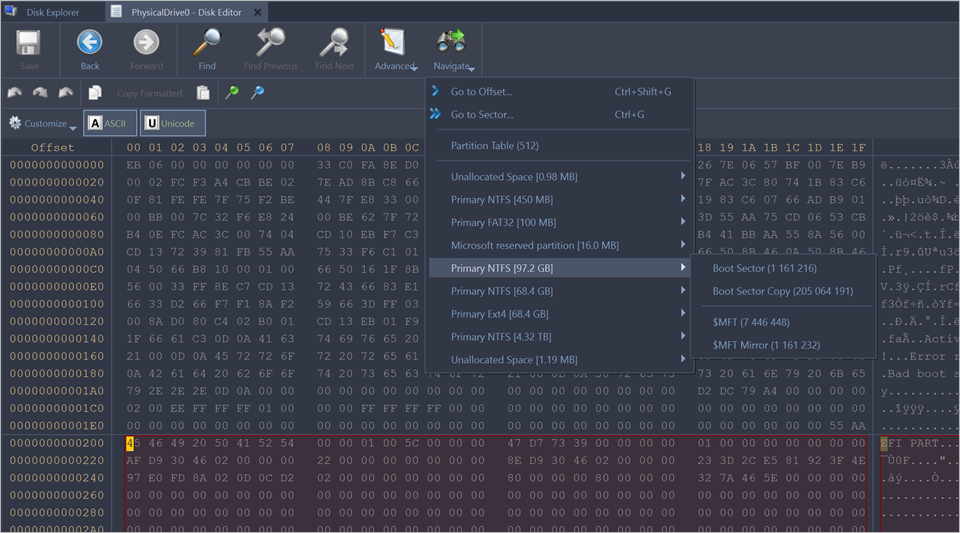
After you have opened an object with the Disk Viewer, you may navigate by scrolling block by block, or by
jumping directly to specific addresses. You may jump to disk system records such as the boot sector (primary and copy) or a partition
table.
Use the Navigate button in the toolbar to jump to a specific area in the open object.
When you navigate to an access point through the Navigate menu or jump to a specific offset or sector, those
addresses are stored in a stack. You can move backward and forward to the previous locations by using the Back
and Forward commands located in the Toolbar.
The selections that appear depend on the type of object that you are editing.
Direct Navigation
No matter what object is opened for editing, the first two menu items in the Navigate menu will be Go
to Offset and Go to Sector.
After you have opened an object with Disk Viewer, you may navigate by scrolling block by block, or by
“jumping” directly to specific addresses. You may jump to disk system records, such as the boot sector (primary and copy) or partition
table. In a file’s cluster chain list, you may jump to the first cluster of a continuous cluster chunk when working with a file.
To open the Navigate menu:
From the main menu choose Actions > Navigate content;
From the Disk Viewer toolbar, open the Navigate drop-down menu.
The selections that appear depend on the type of object that you are editing.
Figure 1: Example. Navigate Menu Selections
Use Property view and SMART Info for detailed information about subject attributes - Property View.