Active bookmarks
Bookmarks allow you to save the current cursor location and quickly return to it later on. You may also give a name to a bookmark to make orientation easier.
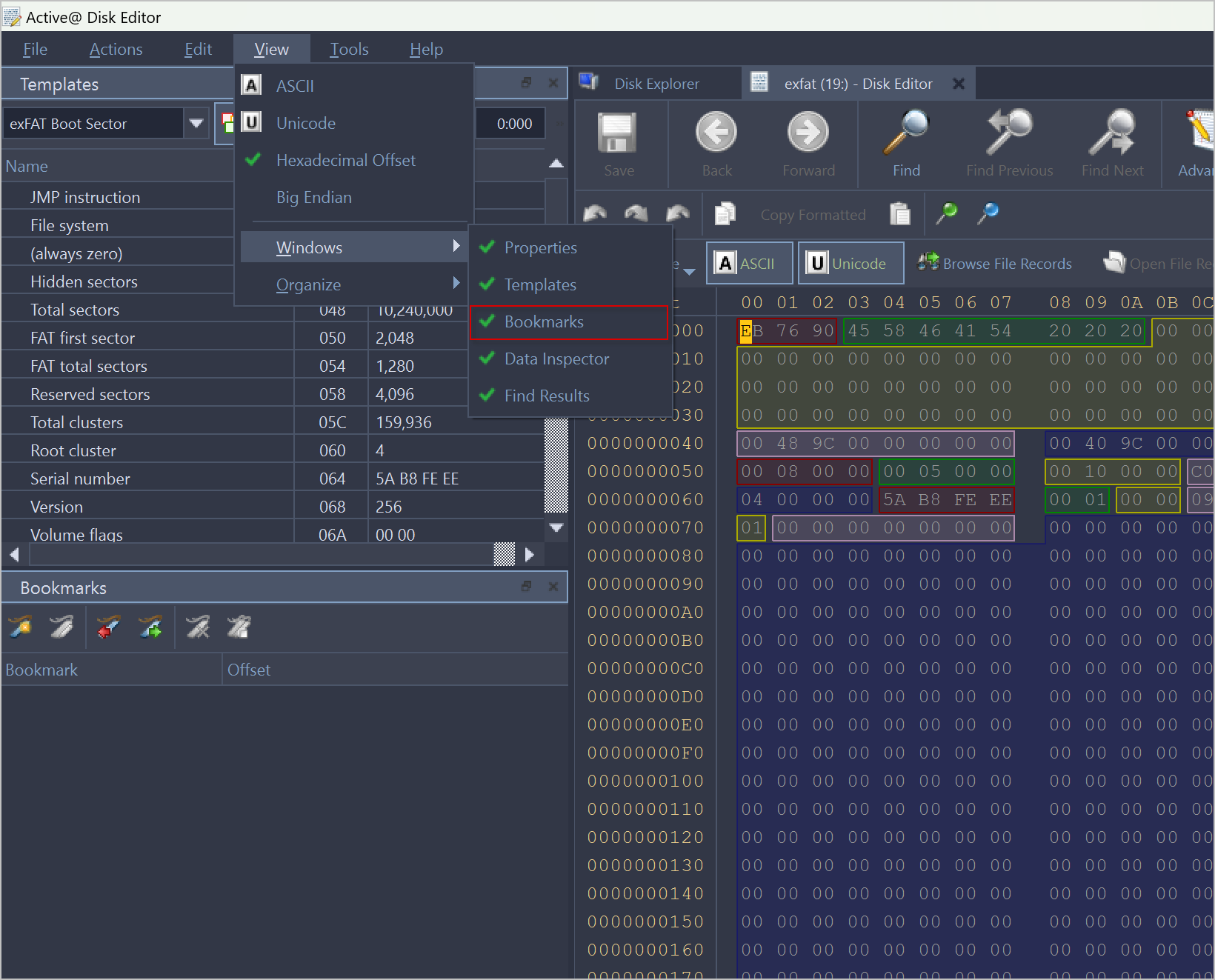
Bookmarks are shown in the tool window called Bookmarks. If the Bookmarks window is closed you can open it using the main menu .
Bookmark view
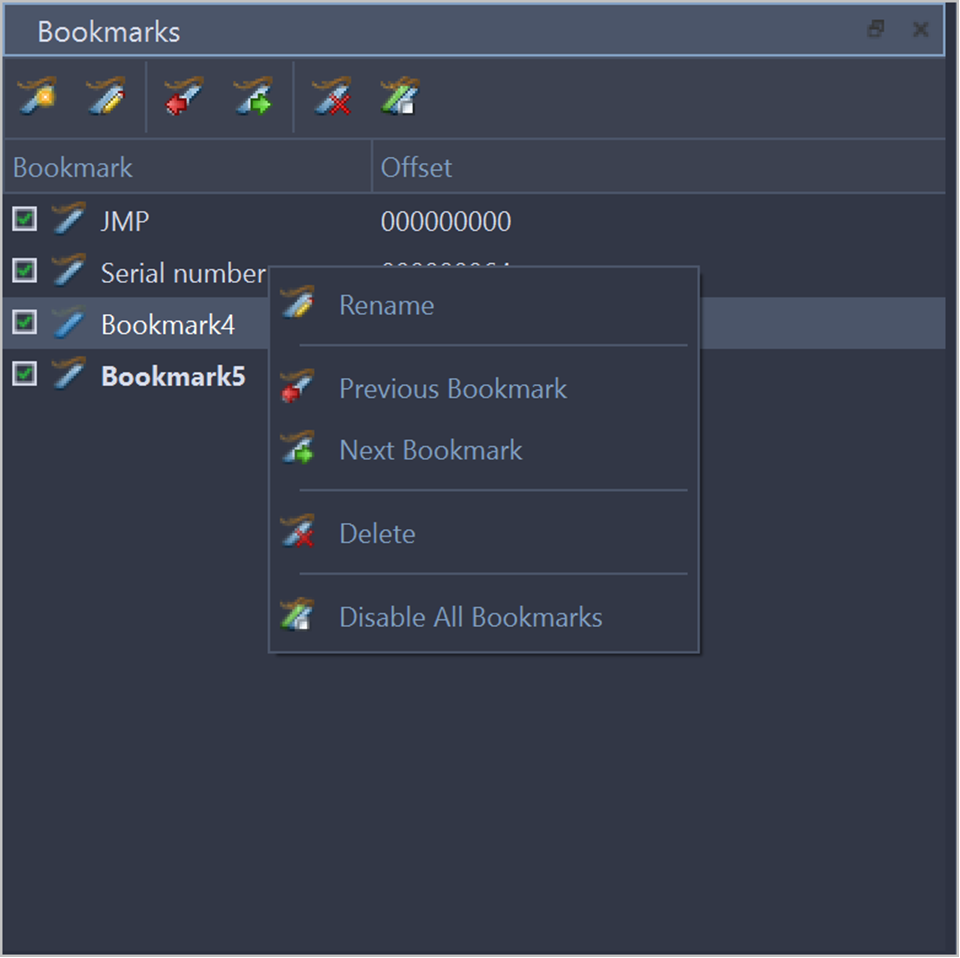
All bookmark for currently edited object are listed in Bookmark view. Bookmark will be saved for next session use if edited object is saved or left open before application exit.
- Toggle bookmark
- Add or remove bookmark at current cursor position
- Rename
- Rename selected bookmark
- Go to previous
- Move (jump) cursor to previous bookmark
- Go to next
- Move (jump) cursor to next bookmark
- Delete
- Delete selected bookmark
- Disable all bookmarks
- Disable bookmarks, thus they will be ignored in bookmark's shortcut navigation.
Add and remove a bookmark
Move cursor to position of interest in the Disk Viewer and press Ctrl+F6 in order to add a bookmark or toggle a Toggle a Bookmark button in the Bookmark view toolbar. Alternatively, you can right click in the Disk Viewer and select a command from a context menu. The bookmark position is shown with a light blue box in the Disk Viewer and also added to the list of bookmarks in the Bookmark view.
To remove a bookmark, press Ctrl+F6 while having the cursor over the position of that bookmark. You can also remove a bookmark from the Bookmarks view by selecting a bookmark in the list and clicking Delete button in a toolbar. The delete function can also be selected from a context menu and Bookmark view toolbar.
Edit bookmarks
Bookmarks are named automatically when they are placed. You can rename a bookmark in the Bookmarks window to give it some meaningful name. To do so make a single mouse click on the bookmark name and edit it. Press Enter to accept your changes or Esc to cancel editing and revert to the original name. You can also rename a bookmark by right-clicking on it and selecting the Rename command from a context menu.
You can use also all of these commands from a toolbar in the Bookmark view.
All bookmarks are highlighted in Disk Viewer for easy navigation.
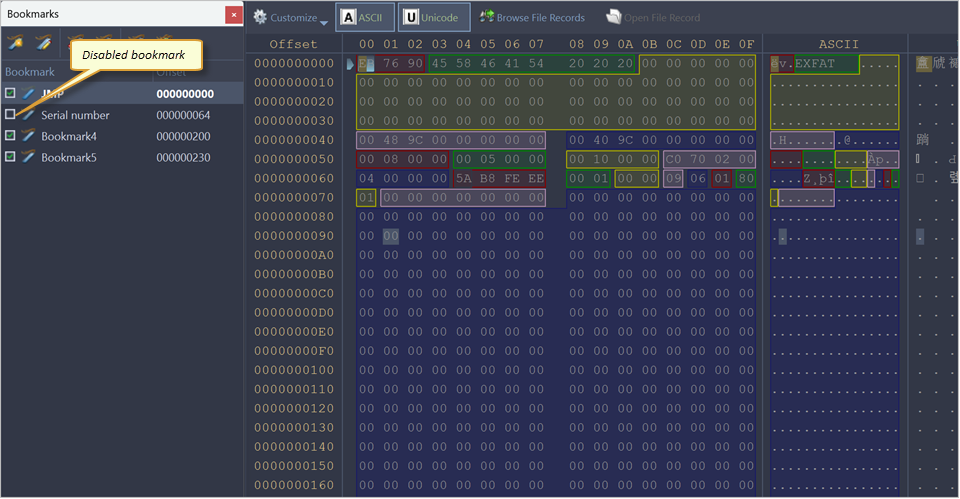
Sometimes instead of deleting a bookmark it is useful to temporarily disable it. A disabled bookmark will not be counted when moving to the next bookmark. Uncheck a bookmark in the Bookmarks window to disable it. To disable all bookmarks at once click Disable all bookmarks in a toolbar or select this command in a context menu.