Disk Bays View
This view of Disk Explorer gives an access to local data storage’s through assigned Disk Bays organized in Disk Bay Layout and can be used to edit layout itself, manage Disk Batches and run main tasks, such as Disk Erase or Disk Wipe. This is the main perspective view for applications like KillDisk Industrial or KillDisk Industrial Systems.
Disk bays can be selected by mouse clicks. Hold down CTRL key to select multiple Disk Bays by mouse. When working with Table Grid Layout click on row or column header to select all bays in correspondent row or column or click on upper left corner square element to select all Disk Bays. Same results can be achieved by using CTRL + A keyboard shortcut.
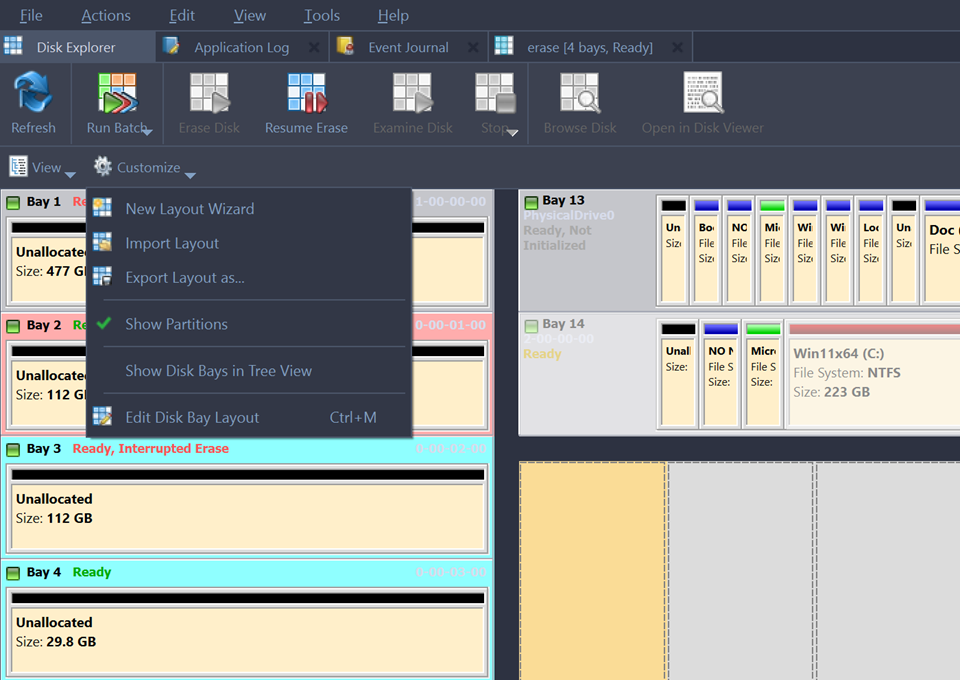
View customization
There are some attributes and look-n-feel parameters can be customized through Customize menu:
- New Layout Wizard
- Launches the New Layout Wizard.
- Import Layout
- Imports saved (previously exported) layout form file having .dbl extension
- Export Layout as..
- Exports custom layout to file having .dbl extension
- Show Partitions
- Show or hide additional layout for partitions and volumes
- Toggle Rows as Columns
- This setting can be toggled on/off to display the rows (defined by the Disk Bay Layout) as columns in the Disk Bays view. Applicable for Table Grid layouts only.
- Edit Layout
- Opens Disk Layout Editor for current layout customization or creating a new layout.
Disk Bays Tree
In addition to graphical Disk Bays Layout representation, there is a tree view to work with disk bays as listed items. This view mode has all features as Disk Bays view plus sorting and filtering.
Sometimes for continence individual Disk Batch can be opened in separate window - Disk Batch View.